Showing posts with label Android Wear. Show all posts

December 5, 2015

GDG Philippines HackTime

GDG Philippines is organizing the first GDG HackFair in the Philippines on December 19-20. HackFair is an interactive two-day event where thirty App/Website/IoT that were created using Google Technologies are given the opportunity to be featured.

In preparation for HackFair, we had a GDG Philippines HackTime on December 5 at Globe Corporate Showroom. Morning talks include introduction to GDG Philippines and GDG HackFair (by me) followed by Design Talk & Workshop and Google Cardboard.


In the afternoon, we had talks and workshops Arduino & Gemma Kit, Android Wear, Firebase, and Polymer. I talked about Developing for Android Wear.


November 14, 2015

Developing for Android Wear

Android Wear extends the Android platform to wearables. With Android Wear, you can add wearable notifications, create wearable apps, and create watch faces.


To start developing for Android Wear, you would need to download and setup Android Studio. You also need to download the following packages using your SDK Manager:
  • Tools > Android SDK Tools 23.0.0 or higher
  • Tools > Android SDK Platform-tools 23.0.0 or higher
  • Tools > Android SDK Build-tools 23.0.0 or higher
  • Android 4.4W (API 20) or higher > SDK Platform
  • Android 4.4W (API 20) or higher > Android Wear ARM System Image
  • Android 4.4W2 (API 20) or higher > Android Wear Intel System Image
You will also need to install the Android Wear app in your handheld device.

Setting up Android Wear Device

Pair your handheld to your Android Wear Device using the Android Wear app. Enable USB debugging on the wearable by tapping the Build number seven times (in Settings > About). Go to Developer options and enable ADB Debugging. You can connect the wearable to your computer via USB or via Bluetooth.

Setting up Android Wear Emulator

If you do not have an Android Wear device, you can create an emulator. To create an Android Wear Virtual Device:
  1. Open the AVD Manager and click the Create Virtual Device...
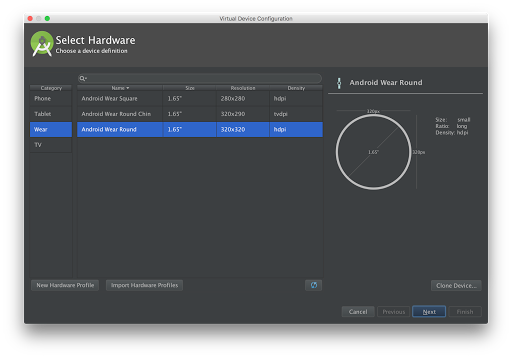
  2. Select Wear in the Category and choose between Square, Round Chin, and Round. Click the Next button.
  3. Select the release name (e.g. Lollipop) then click the Next button.
  4. Rename the virtual device (if you like) and change any coniguration based on your preference.
  5. Click the Finish button to create the emulator.


Creating an Android Wear Emulator

You can now start this emulator and pair it to your handheld. Connect the handheld to your computer via USB and run adb -d forward tcp:5601 tcp:5601 (this forwards emulator's communication port to the handheld). Open the Android Wear app in the handheld and connect it to the emulator.

Creating An Android Wear Project

To create a new Android Wear Project on Android Studio and follow the following steps:
  1. Click New Project in the Welcome Screen (or File > New Project if you already have an open project).
  2. Fill up the project name and package name, then click the Next button.
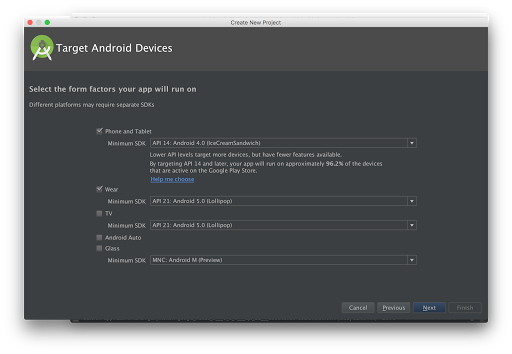
  3. Check Phone and Tablet and select the Minimum SDK.
  4. Check Wear and select API 20: Android 4.4 (KitKat Wear) or higher as the minimum SDK
  5. Click the Next button.
  6. In the Add activity to Mobile window, select Blank Activity then click the Next button. You can change the activity name, layout name, and title.
  7. In the Add activity to Wear window, select Blank Wear Activity then click the Next button. You can change the activity name, and the layout names.
  8. Click the Finish button.


Creating an Android Wear Project

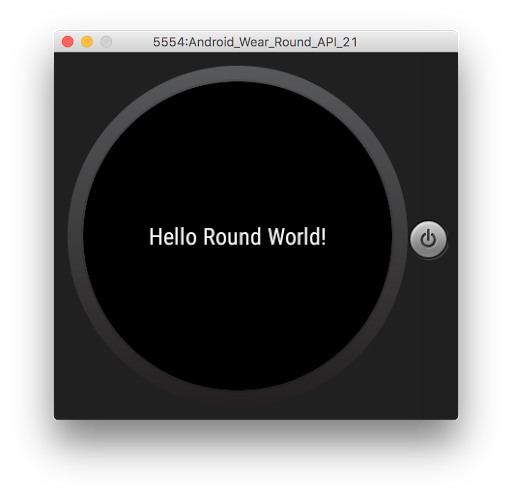
Run the mobile module to run it in your phone or tablet device (or emulator). To run and view the wearable app, run the wear module and choose your emulator. You will see something like the one below:


To learn more about developing for Android Wear, take Udacity's Android Wear Development course, built by Google. You can also join the Android Wear Developers Google+ Community

May 22, 2015

GDG Watch Face

One of the great feature of Android Wear smart watches is that you can change your watch face (and even customize them). As I have been studying more about developing Android Wear apps, I decided to also read about creating Android Wear Watch Faces. After reading about designing and developing Watch Faces, I am proud to publish my first Android Wear Watch Face, the GDG Watch Face, on Google Play Store.

The GDG Watch Face on a round watch

GDG Watch Face brings the GDG (Google Developer Group) spirit into your wrist. The watch face is primarily an analog clock with the GDG logo in the middle. It also displays the date and a small digital clock (24-hour time for now). Users can customize the watch face by showing/hiding the date and by changing the colors of the hands (hour, minute, second) and hour markers.

Customizing the GDG Watch Face as shown from a square watch

I will be continuing development of the watch face, like adding more customizations and adding a mobile configuration app so you can update the watch face from your phone or tablet. If you have comments and suggestions, please let me know.

You may download GDG Watch Face on Google Play Store.


April 21, 2015

Help Me

Last weekend (April 18-19), Celine and I joined Accenture Technology Talks & Hackathon 2015. The theme for the hackathon is public safety.

After fifteen hours of hacking, we were able to finish our app, Help Me. It is an emergency button application that allows you to send an SMS to your specified contact person with a click of a button. The message contains your last known GPS coordinates, as well as the nearest known place. The app will also continuously send SMS until you tap the "I am Safe" button.


Help Me Android App

Help Me also has an Android Wear app. You can use the wearable panic button application to send emergency SMS from your Android Wear Device. We were able to test this on Moto 360 and LG G Watch.


Help Me Android Wear App

You can download Help Me on Google Play Store. Let us know if you have comments and suggestions to the app.


September 5, 2014

Android Wear Videos Playlist

I have been watching these videos about Android Wear and wearables, including the DevBytes released during the launch of the Developer Preview, the I/O Bytes about Android Wear, and the Wearables sessions during Google I/O 2014. These videos are in different playlists and locations. Thus, I decided to create a YouTube playlist for these Android Wear videos. The Android Wear playlist is available at https://www.youtube.com/playlist?list=PLPHUBdjMycTr_e1szOvkBWEUMDN2tybWX.

August 15, 2014

Android Workshops

After Google I/O, we at GDG Philippines have been busy with our events. We've had the Post-I/O Meetup (July 7), Chromecast/Google Cast Meetup (July 23), Polymer Workshop (July 30) and Android Wear Workshop (August 2). GDG Philippines also visited different schools (FEU, ADMU, and NU) for our GDG Campus Roadshow events. Aside from talks about different Google technologies, we usually have Android, Google App Engine, or Google Maps API workshops for our Campus Roadshows.

In Ateneo de Manila University (July 26), we had workshops in Google App Engine and Android. This was co-organized with a Google Student Ambassador from Ateneo (Cristine Chen). I facilitated the morning Android workshop.


The participants in the Android workshop at Ateneo

During the GDG Campus Roadshow in National University, we had talks about Google Chrome, Google Apps, and Motivational/IT Careers. In the afternoon, we had workshops in Google App Engine, HTML5 Game Development, and Android. I facilitated the half-day Android workshop.


Android workshop at NU

We also organized our first Android Wear event, an Android Wear Workshop last August 2. It was a whole-day event held in De La Salle University. Tomorrow, we'll be back in DLSU for the GDG-GSA Campus Roadshow, with Google App Engine workshop in the morning and an afternoon Android Workshop.


Android Wear Workshop

Conducting workshops, even if it's just a half-day event, is tiring but knowing that you have taught the participants something and inspired them takes away all the tiredness. If you are interested in attending events of GDG Philippines, add us in your Google+ circles for updates. You can also invite GDG Philippines in your schools by filling up our Event Request Form and we'll get back to you.

August 7, 2014

Getting Started with Android Wear

The official SDK for Android Wear has been announced together with Android Wear during Google I/O 2014. If you want to start developing for Android Wear, you would need to download Android Studio 0.8+. You would also need to download the following packages using your SDK Manager:
  • Android 4.4W (API 20) > SDK Platform
  • Android 4.4W (API 20) > Android Wear ARM System Image
  • Android 4.4W (API 20) > Android Wear Intel System Image
Additionally, you can download the packages for Samples and Sources.

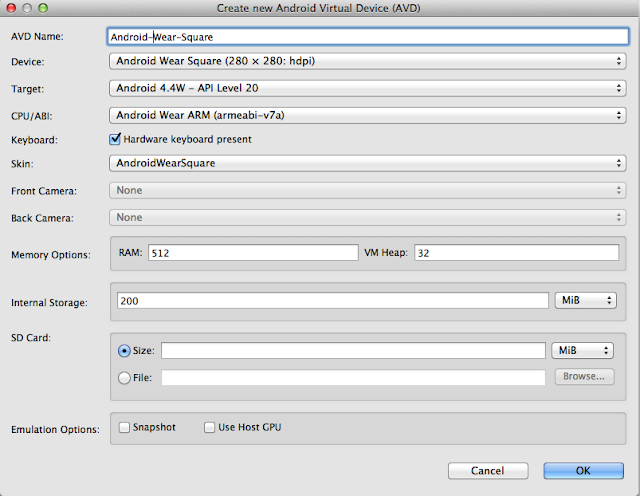
If you do not have an Android Wear device yet, you can create an emulator. To create one, go to the AVD Manager and click the Create... button. Fill it up with the name and the following details:
  • Device - Android Wear Round or Android Wear Square device types;
  • Target - Android 4.4W - API Level 20
  • CPU/ABI - Android Wear ARM (armeabi-v7a)
  • Keyboard - Select Hardware keyboard present
  • Skin - AndroidWearRound or AndroidWearSquare
  • Snapshot - Not selected
  • Use Host GPU - Selected


Creating an Android Wear Emulator

Click OK. You can now start this emulator.

To create a new Android Wear Project, follow the following steps:
  1. Open Android Studio
  2. Click New Project in the Welcome Screen (or File > New Project if you already have an open project).
  3. Fill up the project name and package name, then click the Next button.
  4. Check Phone and Tablet and select the Minimum SDK.
  5. Check Wear and select API 20: Android 4.4 (KitKat Wear) as the minimum SDK
  6. Click the Next button.
  7. In the Add activity to Mobile window, select Blank Activity then click the Next button. You can change the activity name, layout name, and title.
  8. In the Add activity to Wear window, select Blank Activity then click the Next button. You can change the activity name, and the layout names.
  9. Click the Finish button.
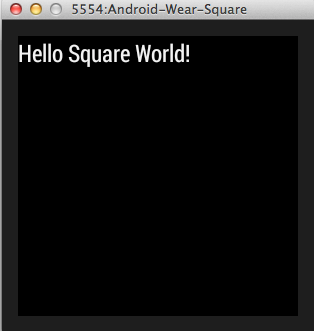
Run the mobile module to run it in your phone or tablet device (or emulator). To run and view the wearable app, run the wear module and choose your emulator. You will see something like the one below:


Hello Square World


August 5, 2014

Android Wear

During Google I/O 2014's keynote, Android Wear was officially announced. Android Wear extends the Android platform to wearables.

To use an Android Wear smart watch, it must be paired to a phone or tablet running Android 4.3 and up and has Bluetooth. The Android Wear app must be installed and used to pair the handheld device to an Android wear device (or an Android Wear emulator).

There were three smartwatches announced: the LG G Watch and Samsung Gear Live, which are already available for purchase and the upcoming Moto 360, which will be released in the coming weeks. Both the LG and Samsung watches have square faces while the Moto 360 has a round design.

Android Wear shows your Google Now cards and notifications from the apps installed in your handheld device. There are also apps that has integration to or run directly on the wearable. You can also use the Ok Google voice command to search, reply via voice, or do actions on the wearables (like Take a Note, Send a text, Navigate, and many more. It can also count your number of steps and get your heart rate (the Gear Live has this sensor while the G Watch does not).


April 2, 2014

Android Wear Developer Preview

Last month, Google announced Android Wear, Android's platform for wearable devices, and the Android Wear Developer Preview. This preview is not intended for production use because it will no longer be supported after the official SDK is released, which will probably be announced in Google I/O 2014 happening on June 25-26.

To get started with the Android Wear Developer Preview, you must first signup at http://developer.android.com/wear/preview/signup.html. You can then download the Android Wear Support Library and sample codes, and you will be given access to the Android Wear Preview app on Google Play.

Download the Android Wear ARM EABI v7a System Image using the Android SDK Manager. It is available under Android 4.4.2. When creating a smart watch emulator, you can choose between AndroidWearSquare or AndroidWearRound depending on the display you want. The target should be Android 4.4.2 and the CPU/ABI should be Android Wear ARM (armeabi-v7a).

If you already have installed the Android Wear Preview app, open it and check the notification access in the settings. To connect the Android Wear emulator to the app, go to your command line terminal, navigate to your Android SDK's platform-tools directory and execute adb -d forward tcp:5601 tcp:5601.

The Android Wear support library must also be added to your Android project. You can try this with the sample codes included in the download

For more information, you can check out the Android Wear website, join the Android Wear Developers Google+ community at http://g.co/androidweardev, or watch the Android Wear DevBytes playlist: